The @xl_menu decorator is used to expose a python function as a menu callback. PyXLL creates
the menu item for you, and when it’s selected your python function is called. That python
function can call back into Excel using win32com or comtypes to make changes to the current
sheet or workbook.
Different menus can be created and you can also create submenus. The order in which the items appear is controlled
by optional keyword arguments to the @xl_menu decorator.
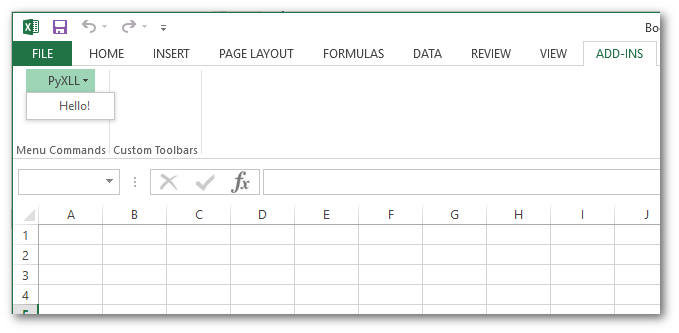
Here’s a very simple example that displays a message box when the user selects the menu item:
from pyxll import xl_menu, xlcAlert

@xl_menu("Hello!")
def on_hello():
    xlcAlert("Hello!")
Menu items may modify the current workbook, or in fact do anything that you can do via the Excel COM API. This allows you to do anything in Python that you previously would have had to have done in VBA.
Below is an example that uses xl_app to get the Excel Application COM object and modify the current
selection. You will need to have win32com or comtypes installed for this.
from pyxll import xl_menu, xl_app

@xl_menu("win32com menu item")
def win32com_menu_item():
    # get the Excel Application object
    xl = xl_app()

    # get the current selected range
    selection = xl.Selection

    # set some text to the selection
    selection.Value = "Hello!"
As well as adding menu items to the main PyXLL addin menu it’s possible to create entirely new menus.
To create a new menu, use the menu keyword argument to the @xl_menu decorator.
In addition, if you want to control the order in which menus are added you may use the menu_order integer keyword argument. The higher the value, the later in the ordering the menu will be added. The menu order my also be set in the config (see configuration).
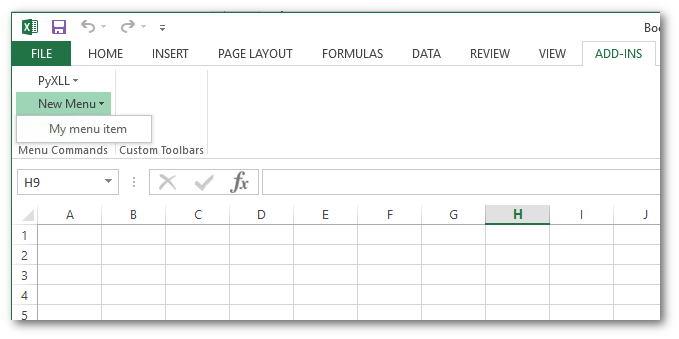
Below is a modification of an earlier menu example that puts the menu item in a new menu, called “New Menu”:
from pyxll import xl_menu, xlcAlert

@xl_menu("My menu item", menu="New Menu")
def my_menu_item():
    xlcAlert("new menu example")
Sub-menus may also be created. To add an item to a sub-menu, use the sub_menu keyword argument to
the @xl_menu decorator.
All sub-menu items share the same sub_menu argument. The ordering of the items within the submenu is controlled by the sub_order integer keyword argument. In the case of sub-menus, the order keyword argument controls the order of the sub-menu within the parent menu. The menu order my also be set in the config (see configuration).
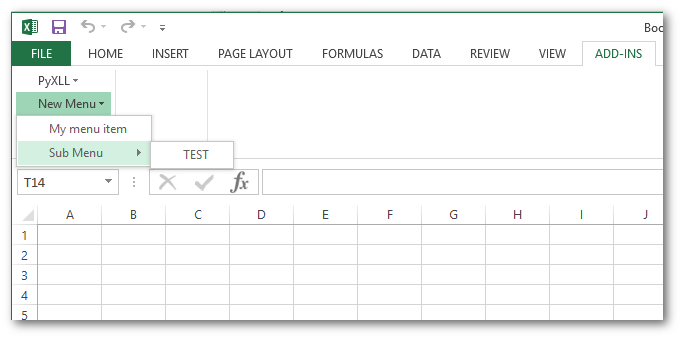
For example, to add the sub-menu item “TEST” to the sub-menu “Sub Menu” of the main menu “My Menu”, you would use a decorator as illustrated by the following code:
from pyxll import xl_menu, xlcAlert

@xl_menu("TEST", menu="New Menu", sub_menu="Sub Menu")
def my_submenu_item():
    xlcAlert("sub menu example")