PyXLL is an Excel add-in that lets you write Excel worksheet functions, macros, and more using Python. This guide takes you from a fresh install to your first working Python function in Excel.
Open a command prompt, activate your Python virtual environment if necessary, and run:
pip install pyxll
Followed by:
pyxll install
and follow the on-screen instructions.
When asked whether you have already downloaded PyXLL, enter n and the installer will download the
right version for you.
You do not need a license key. When asked if you have a license key, enter n and the free
30 day trial will begin automatically when the add-in loads.
For other installation options (including manual installation) see the installation guide.
pyxll command not recognized?
pip install pyxll installs the pyxll command into your Python scripts
folder, but if the Python scripts folder isn’t on your path then the command
won’t be found.
Instead, run python -m pyxll install. This will do the same thing, without
needing the pyxll command to be installed on your system path.
Once PyXLL is installed you can expose a Python function to Excel in four steps.
Create a new file, for example my_functions.py, containing a function
decorated with @xl_func:
from pyxll import xl_func

@xl_func
def hello(name):
    """Say hello to someone."""
    return "Hello, " + name
Open the PyXLL config file. The config file is the file named pyxll.cfg in the folder where you installed
the PyXLL add-in. You can edit this with any text editor, such as notepad, or your Python code editor.
If you are not sure where the file is located, you can run pyxll status and that will tell you, or you
can run pyxll config to open the config file using the associated editor.
The file is split into multiple sections. Look for the [PYTHON] section and in there you will find
the pythonpath setting. This is a list of folders where Python will look for modules. Add the folder
where you saved your new my_functions.py file so that it can be imported.
Next, look for the [PYXLL] section. In that section you will find the modules list. This is the list
of Python modules (or packages) that will be loaded by the PyXLL add-in. Add your module name (my_functions)
to this list. Note that a Python module name does not include the .py file extension.
[PYTHON]
pythonpath = C:\path\to\folder\containing\my_functions

[PYXLL]
modules = my_functions
In Excel, open the PyXLL menu and select Reload. This picks up your new module without restarting Excel.
Each time your open Excel, your configured modules are loaded automatically.
If there are any errors at this stage, check the PyXLL log file
By default it is in the logs folder inside your PyXLL installation directory. You can run
pyxll status to find where PyXLL is installed if you are not sure where that is.
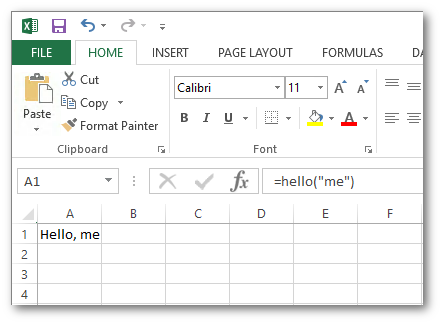
In any worksheet cell type:
=hello("World")
The Worksheet Functions section of the user guide explains the full range
of what you can do with @xl_func, including type hints, array functions,
and optional arguments.
The PyXLL installation includes an examples folder with an Excel workbook and
Python source files demonstrating all major features — worksheet functions, macros,
real-time data, plotting, ribbon toolbars, and more.
Open examples.xlsx to see them in action, and read the corresponding .py
files to understand how each one works. Use pyxll status if you cannot remember
where PyXLL was installed.
pip or the download fails due to a corporate firewall or proxy
Follow the manual installation instructions instead.
“The ‘pyxll’ command is not recognised” after pip install
Your Python Scripts folder may not be on your system path. Use
python -m pyxll install instead - it works identically.
“pythonXXX.dll not found” when starting Excel
The PyXLL add-in was built for a different Python version. Let the command-line
installer download the correct version by entering n when asked if you have
already downloaded PyXLL.
Other issues
Check the PyXLL log file for the full error and Python stack trace. Search the FAQ or contact us for further help.
User Guide — complete documentation of all PyXLL features
Video Guides and Tutorials — video tutorials covering installation, worksheet functions, and more
API Reference — full Python API reference